iPhone as Webcam for Video Podcasts: Setup, Quality and Clips
Use your iPhone as a webcam for video podcasting. Better quality than budget cameras, easier distribution to YouTube Shorts, TikTok and Instagram.
Video podcasting no longer requires a separate camera. Your iPhone already delivers better resolution, autofocus and colour accuracy than most entry-level webcams, and native integration on Mac or simple third-party software on Windows turns it into a professional recording device in minutes. For creators building a show around clips, vertical video and social discovery, this approach removes technical barriers and accelerates the path from recording to distribution.
Riverside published a detailed walkthrough on using an iPhone as a webcam across both operating systems. The method works, the quality holds up, and the workflow fits neatly into the content cycle that now defines how video podcasts actually grow: record full episodes, extract short segments, reformat for vertical platforms, and let algorithmic distribution do the work traditional RSS feeds never could.
Why iPhone as webcam matters for video podcast production
The barrier to starting a video podcast used to be equipment cost. A dedicated webcam, lighting, a microphone that syncs properly, and the assumption that more gear equals better output. That assumption no longer holds. Modern iPhones shoot in 4K, handle challenging lighting conditions with computational photography, and stabilise footage in real time. For a solo host or a two-person interview recorded remotely, the iPhone delivers broadcast-grade video without the broadcast-grade investment.
What makes this relevant now is distribution. Video podcasts succeed when episodes fragment into clips optimised for discovery. YouTube Shorts, TikTok and Instagram Reels all favour vertical video, punchy edits and algorithmic recommendation over subscriber loyalty. Recording on an iPhone positions the content one step closer to that end state. The device shoots in portrait mode natively, the files are mobile-optimised, and the entire production chain from capture to export can happen on the same ecosystem.
This is not about replacing studio-quality cameras for high-production shows. It is about eliminating excuses for getting started and removing friction from the editing process once you do. If the goal is to test format ideas, record guest conversations or build a content library that fuels social growth, the iPhone as webcam is the fastest route from concept to published clip.
Setting up iPhone as webcam on Mac and Windows
On Mac, the process is native. Continuity Camera, introduced in macOS Ventura, recognises any iPhone running iOS 16 or later when both devices share the same Apple ID and have Wi-Fi and Bluetooth enabled. Open any video recording application, select the iPhone from the camera menu, and the feed appears instantly. No cables required, though USB connection is available if wireless proves unstable. The iPhone mounts in various positions using third-party stands or simply propped against a monitor, and macOS automatically switches between front and rear cameras depending on orientation.
On Windows, the setup requires third-party software. Applications like Camo, EpocCam and iVCam bridge the gap between iOS and Windows video protocols. Install the desktop client, install the companion app on the iPhone, connect via USB or Wi-Fi, and the phone registers as a webcam in OBS, Zoom, Riverside or any other recording platform. Image quality depends on the app and connection method, but all three options deliver higher resolution than standard laptop webcams.
The technical advantage extends beyond resolution. iPhones include features like Centre Stage, which tracks the speaker and keeps them framed even when moving, and Studio Light, which simulates professional portrait lighting by isolating the subject and softening the background. These computational tools, originally designed for FaceTime, translate directly to podcast recording and reduce reliance on physical lighting rigs.
Practical steps to record a video podcast using iPhone as webcam
- Update both devices to the latest operating system: macOS Ventura or later and iOS 16 or later for Mac users, current Windows 10 or 11 and iOS 14 or later for Windows users.
- On Mac, enable Wi-Fi and Bluetooth on both devices, ensure they share the same Apple ID, then open your recording software and select iPhone from the camera input menu.
- On Windows, download and install Camo, EpocCam or iVCam on both the PC and iPhone, connect via USB cable initially for stability, then switch to Wi-Fi once confirmed working.
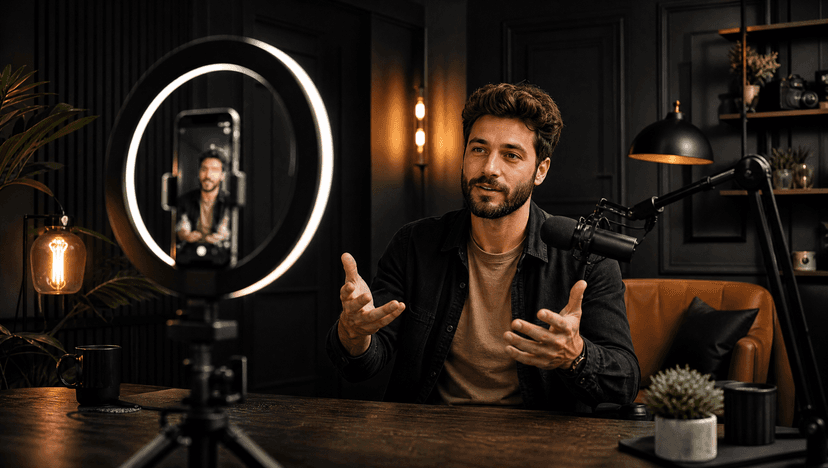
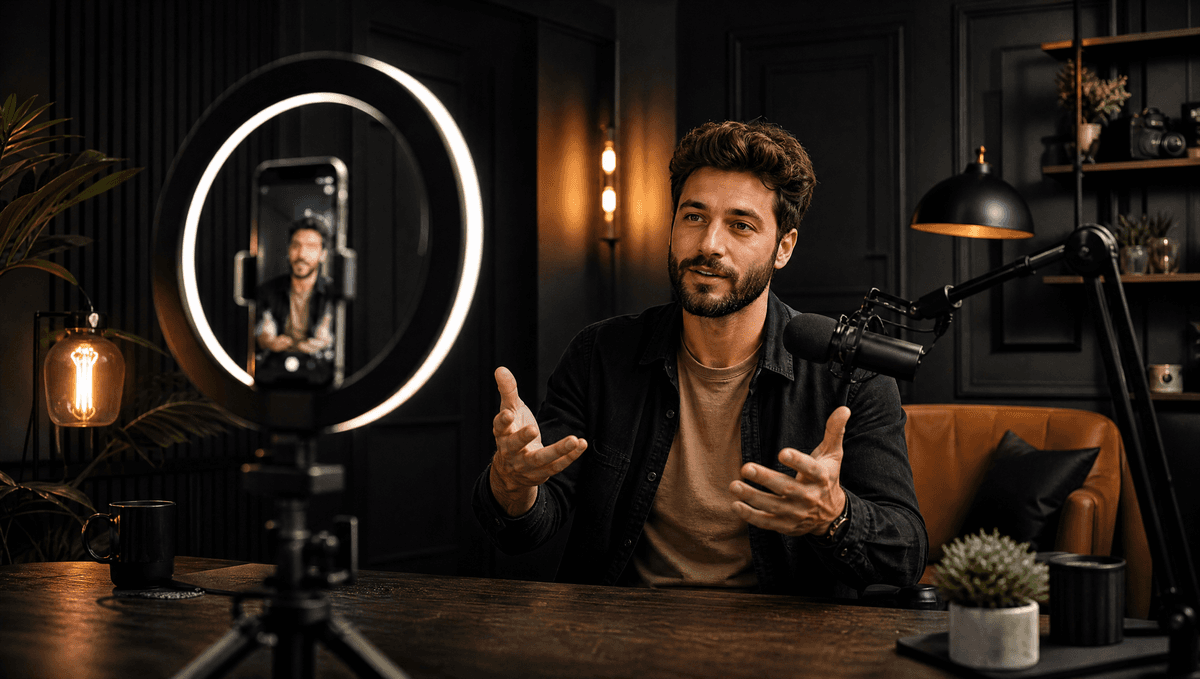
- Position the iPhone at eye level using a tripod mount or desk stand, ensure the rear camera faces you for higher quality, and check framing in the recording software preview.
- Test audio separately: the iPhone microphone is adequate for solo recording but external audio via USB mic or audio interface delivers cleaner sound and avoids sync issues later.
- Record a short test segment, export it, and confirm resolution, focus and colour balance meet your standard before committing to a full episode.
- Save the recording locally or direct to cloud storage, then move immediately into the clip extraction workflow rather than treating the full episode as the final product.
How iPhone recording accelerates clip production and social distribution
The real value emerges after the recording ends. Video podcasts grow through clips, not full episodes. Audiences discover a show when a 60-second segment surfaces in their feed, resonates, and prompts them to seek out more. The iPhone-to-clip pipeline supports that model by keeping production lightweight and iterative.
Recording on iPhone means the source file is already mobile-ready. Aspect ratio conversion from landscape to vertical happens faster when the original footage is high-resolution and stabilised. Editing tools like CapCut, Adobe Premiere Rush or even iMovie handle iPhone footage natively, and exporting optimised files for TikTok or YouTube Shorts requires fewer steps than re-encoding DSLR or professional camera formats.
The workflow looks like this: record the full episode using iPhone as webcam, save the file, open it in your editing software, identify three to five standout moments, extract each as a separate timeline, crop to 9:16 vertical, add captions, adjust pacing, and export. Each clip becomes a standalone piece of content with its own title, thumbnail and metadata. The full episode lives on YouTube or Spotify, but the clips drive discovery.
Algorithmic platforms prioritise watch time and completion rate. A 90-second clip that holds attention performs better than a 45-minute episode that loses viewers at the three-minute mark. Recording on iPhone encourages a mindset shift: the episode is raw material, the clips are the product. That shift changes how you structure conversations, how you prompt guests, and how you edit. Instead of hoping someone finds your RSS feed, you create dozens of entry points across multiple platforms, each one optimised for the way people actually consume content now.
Quality comparison and when to upgrade
An iPhone 12 or newer produces 4K video at 60 frames per second, which exceeds the resolution of most budget webcams and matches mid-tier dedicated cameras. Colour science is consistent, low-light performance is strong, and autofocus is fast enough to handle movement without hunting. For interview-style podcasts, solo commentary or remote recordings, it is more than sufficient.
The limitation appears when recording multiple people in the same room. A single iPhone cannot capture wide angles without distortion, and switching between cameras mid-recording introduces continuity issues. For studio-based shows with multiple hosts, a fixed camera setup with proper framing and consistent lighting remains the better option. But for remote recordings, particularly when guests join from different locations, the iPhone as webcam levels the playing field. Everyone records on their own device, quality stays high, and post-production syncing is simpler.
When to upgrade depends on volume and format. If you are publishing one episode per week and cutting five to ten clips from each, the iPhone setup holds. If you are recording daily, producing multi-camera edits, or aiming for cinema-quality visuals, a dedicated camera rig makes sense. The decision point is not about image quality in isolation but about how much friction the current setup introduces into your production cycle. If the iPhone lets you publish faster, test more formats, and distribute more clips, it is the right tool. If it becomes the bottleneck, upgrade.
Where video podcasting and short-form content are heading
Podcasting is no longer an audio-first medium. YouTube is the most popular podcast platform by listener share, and vertical video clips outperform audio-only posts on every social platform. The shift is structural, not temporary. Audiences expect to see the host, read captions, and watch visual context even when the content is primarily conversational.
This changes production priorities. Recording quality matters, but editing speed matters more. The ability to extract clips quickly, test different hooks, and iterate based on performance data determines which shows grow and which stagnate. Using an iPhone as webcam supports that speed. The technical quality is high, the workflow is simple, and the output is optimised for the platforms that drive discovery.
Expect further convergence between recording, editing and distribution tools. Platforms like Riverside already integrate remote recording, automatic transcription, and clip creation into a single workflow. Mobile-native production accelerates that trend. The less separation between capture and publication, the more content gets made, and the more formats creators test.
Recording quality still determines whether clips convert
No amount of editing fixes poor source footage. Clips perform when the video is sharp, the audio is clean, and the framing directs attention to the speaker. Using an iPhone as webcam delivers on all three when set up correctly, but the advantage disappears if the microphone picks up echo, the lighting creates harsh shadows, or the camera angle distorts the subject.
If you are building a video podcast that depends on clips for growth, invest time in the recording environment. Controlled lighting, external audio, stable mounting and consistent framing produce footage that edits faster and performs better. That is where a professional studio makes the difference. You still record remotely using an iPhone if needed, but the studio environment ensures every element is optimised before the file reaches the editing timeline.
At THE LODGE Studios in London, we configure every session for multi-platform distribution. That means high-resolution video, broadcast-quality audio, and a recording setup that produces clean, clip-ready footage from the start. Whether you are recording solo or hosting a guest, the output is designed to fragment into vertical clips, YouTube Shorts, and social posts without compromising quality. If your show depends on clips to grow, book a session at https://book.thelodgestudios.co.uk and record content that travels.